TinyTaskA free macro recorder for Windows
TinyTask records what you do on your PC and plays it back. Press record, do the task, press record again, then press play. No scripting, no installation, no setup. One file, and it runs the moment you double-click it.
- File
- tinytask.exe
- Size
- 36,352 bytes
- Built
- 4 Nov 2019
- SHA-256
- 75e06ac5b7c1adb01ab994633466685e3dcef31d635eba1734fe16c7893ffe12
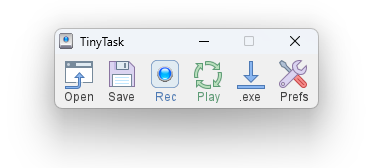
That is the whole interface. Six buttons: Open, Save, Rec, Play, .exe, Prefs. Nothing is hidden behind them.
This site mirrors that file with its checksum published, documents every button against the real program, and tells you plainly what it cannot do. That last part turns out to be the rarest thing written about it.
36,352
Bytes, measured, not rounded
75e06ac5…
SHA-256, reproducible on your machine
Nov 2019
Build date, printed by the program itself
No installer
One file, one settings file, nothing else
What it does
Six things, and each has a page of its own.
Records mouse and keyboard
TinyTask captures movement, clicks, keystrokes, and the timing between them. The gaps matter as much as the actions, which is why playback looks like a person working rather than a burst of instructions.
How recording worksReplays at the speed you choose
Half speed for fragile applications, faster for simple ones, or a custom multiplier. The playback speed page explains what each option really changes.
Speed optionsRepeats as often as you want
A fixed count, or continuous until you stop it. Both settings live in one menu and both are written into a compiled file. Covered on the loops page.
Loop settingsTurns a macro into a program
The .exe button produces a standalone file that runs on any Windows machine with nothing installed, and you may sell what you build. That is the developer's own position.
Compiling explainedSaves and reopens recordings
Each one is a file you keep. Open it from the toolbar, never by double-clicking it in Windows.
Why double-clicking failsRuns from anywhere
A USB stick, a network folder, your desktop. It writes one small settings file beside itself and nothing else.
What portable meansWho uses it, and for what
Anyone who does the same sequence of clicks and keystrokes more than twice a day.
Data entry and forms
Fill the same fields, in the same order, as many times as the job needs.
Multi-step processes in slow software
Business applications that need eight clicks to reach one screen. Record the route once.
Testing
Run the identical sequence again and again, so that what changes is the software and not your hand.
File and folder chores
Renaming, moving and sorting in a fixed pattern.
It suits those jobs because it needs no setup and no learning. It is the wrong tool the moment the task varies, and the section below says exactly where that line falls.
What it will not do
The section other sites leave out.
This is the section other sites leave out, and it will save you more time than everything above. Each of these is a hard limit, not a setting you have missed.
It cannot make a decision.
No conditions, no branching, no checking whether a step worked.
It cannot wait for something to appear.
It waits for the time you recorded, not for the screen.
It cannot see.
No image matching, no text recognition, no way to find a button that moved. It clicks coordinates, which is why a macro breaks when a window changes position or your display scaling changes. That single fact explains most of the things that go wrong.
It cannot be edited.
No timeline, no step list. A wrong macro is recorded again.
It cannot pause.
Not during recording and not during playback.
It cannot schedule itself.
Windows can do that for you, as the scheduling page shows.
It runs on Windows only.
No macOS, no Linux, no Chrome OS, no phone. Every platform question has its own page below, and every answer is no.
If any of those is what you actually need, you have outgrown a recorder. The alternatives page groups the options by what you are trying to solve.
Still true today
It stopped being developed, and that matters.
TinyTask has not been rebuilt in years. The program says so itself.
Open Prefs, choose About TinyTask, and it prints its own build date. That date is years old, and it matches the timestamp inside the file.
Nobody is fixing bugs, adding features or answering questions about it. The developer's own site has a support page still describing work as future plans, and a changelog that stops short of the version the same site offers for download.
None of that makes TinyTask useless. It works, it is small, and it does the job it was built for. It does mean something else, though. Anything promising a new version, a mobile app or a Mac build is promising something that does not exist. The version history page records what actually does.
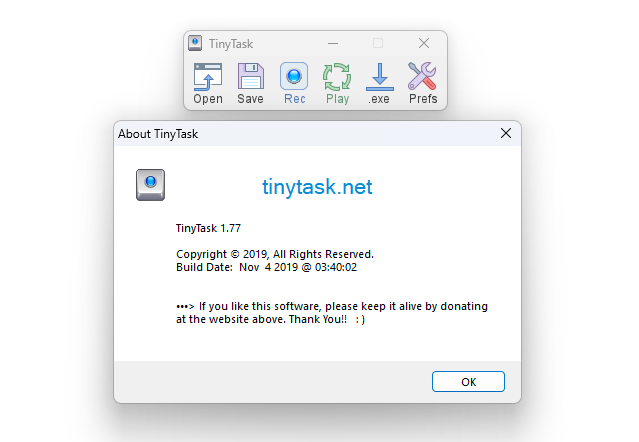
Prefs → About TinyTask. Screenshot taken on a clean Windows 11 install.
Download
Get the file, and check it.
The download below is a mirrored copy of the original, byte for byte. Both files contain the same program.
tinytask.exe
The straightforward choice. Download, place, double-click.
- Version
- 1.77
- Size
- 36,352 bytes
- SHA-256
- 75e06ac5b7c1adb01ab994633466685e3dcef31d635eba1734fe16c7893ffe12
tinytask.zip
Same program, compressed. Use this if your browser or workplace blocks program downloads.
- Version
- 1.77
- Size
- 20,594 bytes
- SHA-256
- 55ccdb4fbf69a4466aaf5b800abedba37bb76fd1d50577335c0ae1d88eb19bbc
Mirrored from the original source and last checked today. This site is not the developer and is not affiliated with them.
Every file here is published with its exact size and its SHA-256, so you can confirm what you have before running it. We host a verified copy so you do not have to go looking, and we publish enough detail for you to confirm it is the same file.
# Windows PowerShell, in the folder holding your download
Get-FileHash .\tinytask.exe -Algorithm SHA256
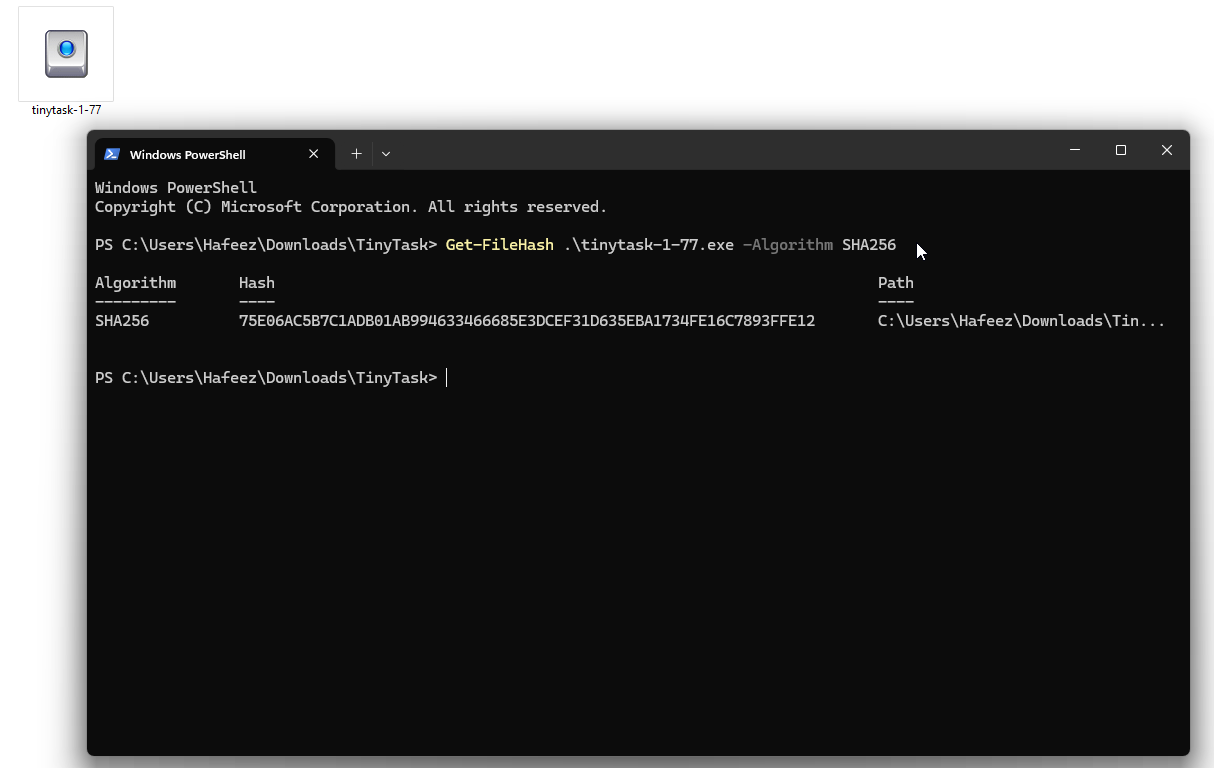
The same value, produced on a different machine by a different person.
One command in PowerShell tells you whether your copy is identical to the published one. It takes under a minute and it works no matter which site you downloaded from. The safety page walks through it and explains why scanners flag this category of software. Compare the output with the checksum above: it should match character for character. If it does not, delete the file and take a copy you can verify.
One warning about other downloads
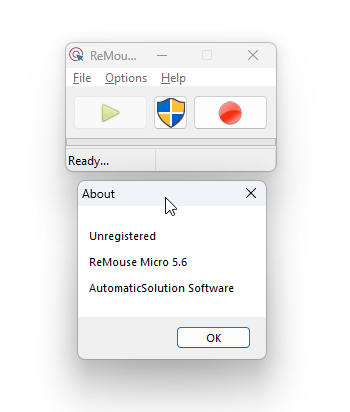
Files offered elsewhere as Micro and Standard editor versions are not TinyTask. They install a different company's shareware, which asks you to register. We downloaded both and photographed every screen.
There is also no working installer. The developer's own documentation links one and that link is dead. The setup file circulating under this name installs the other vendor's product. See both programs side by side
Getting started
Your first macro in about a minute.
Five steps. The second one is the one people skip.
Open the application you want to automate
Put it where you want it. Anything you arrange now is not part of the recording.
Decide how you will stop
Use the record hotkey rather than the toolbar button, because moving your mouse back to the toolbar gets recorded and the keypress does not.
Press Rec and do the task
Work at a normal pace. The title bar becomes a counter.
Stop, reset the screen, and press Play
Put everything back to how it looked when you started, then watch it run. Playback begins from wherever you are, not from where you recorded.
Press Save if it worked
Nothing is saved automatically. Stopping a recording leaves it in memory, and closing the program loses it.
The full walkthrough, including the mistakes almost everyone makes first time, is in the how to use TinyTask guide.
If a macro will not stop
Press Pause or ScrollLock. Break works too.
Everybody needs this eventually, usually the first time they try a loop. The keys work without the window in focus.
The stop playback page covers the awkward cases, including keyboards that have no such key. Learn this before you need it, not during.
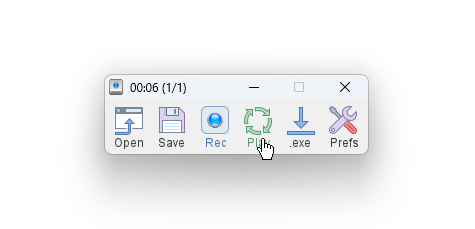
During playback the title bar shows the time and which pass it is on.
Everything it can be told to do
One menu, and that is the complete set of options.
Speed, loops, both hotkeys, always on top, captions and the toolbar image. There is no advanced panel and no second window.
This matters because several guides describe a speed slider on the toolbar and a stop button that does not exist. Neither is in the program.
Each setting has a page, and the hotkeys reference lists every key the program will accept, which is fewer than most guides claim.
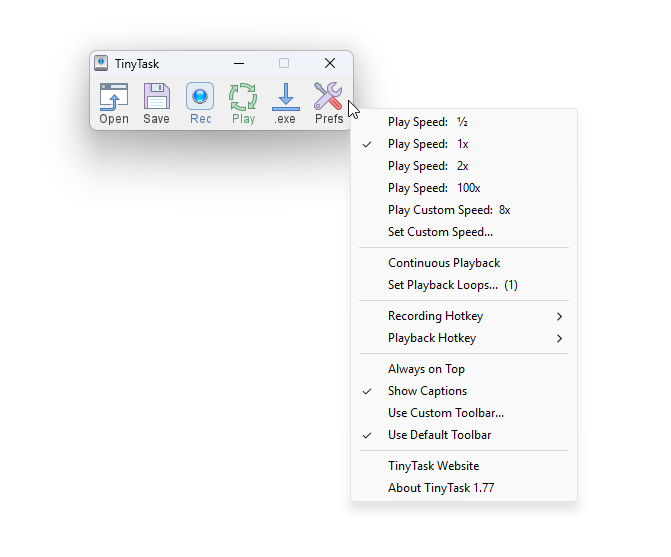
The Prefs menu, uncropped. Nothing has been removed from this image.
Guides
Twelve pages, each answering one question.
Platforms
The answer is Windows.
Every other platform question has a page, and every one of them explains what to use instead.
Comparisons and context
What to use instead, and what is being sold under this name.
Common questions
Answered in one line, then explained.
A small Windows program that records mouse movement, clicks and keystrokes, then replays them. It needs no installation and no scripting.
Yes, with no paid tier and no trial. If something asked you to register, you downloaded a different product.
The genuine file installs nothing and writes one small settings file. Whether your copy is genuine depends on where you got it, which is why the checksum is published on every download here.
No. This site is independent and has no connection with the developer. We mirror the file and publish its checksum so you can verify it yourself, which is a stronger guarantee than a claim of officialness.
Yes, with no compatibility settings. The problems people report are display scaling and administrator rights, both covered on the Windows 11 page.
No, and there never has been. The Mac page covers what to use on macOS instead.
Development stopped years ago. The program prints its own build date under Prefs and then About TinyTask, and no release has followed it.
Press Pause or ScrollLock. Neither needs the window in focus.
Most games prohibit automated input in their terms, and the risk falls on your account. We publish no game instructions, and the reasoning is on the Roblox page.
You should not have to. Every file here publishes a checksum you can reproduce, every screenshot is of the real program, and anything we have not tested is labelled as untested on the page. The about page sets out the method in full.